Free for 30 days · runs on your own computer
Try Helix on
your own work.
Download it, choose one folder or your mailbox, and Helix shows you what needs you today, with the source of every line. It drafts your follow-ups and asks before anything goes out.
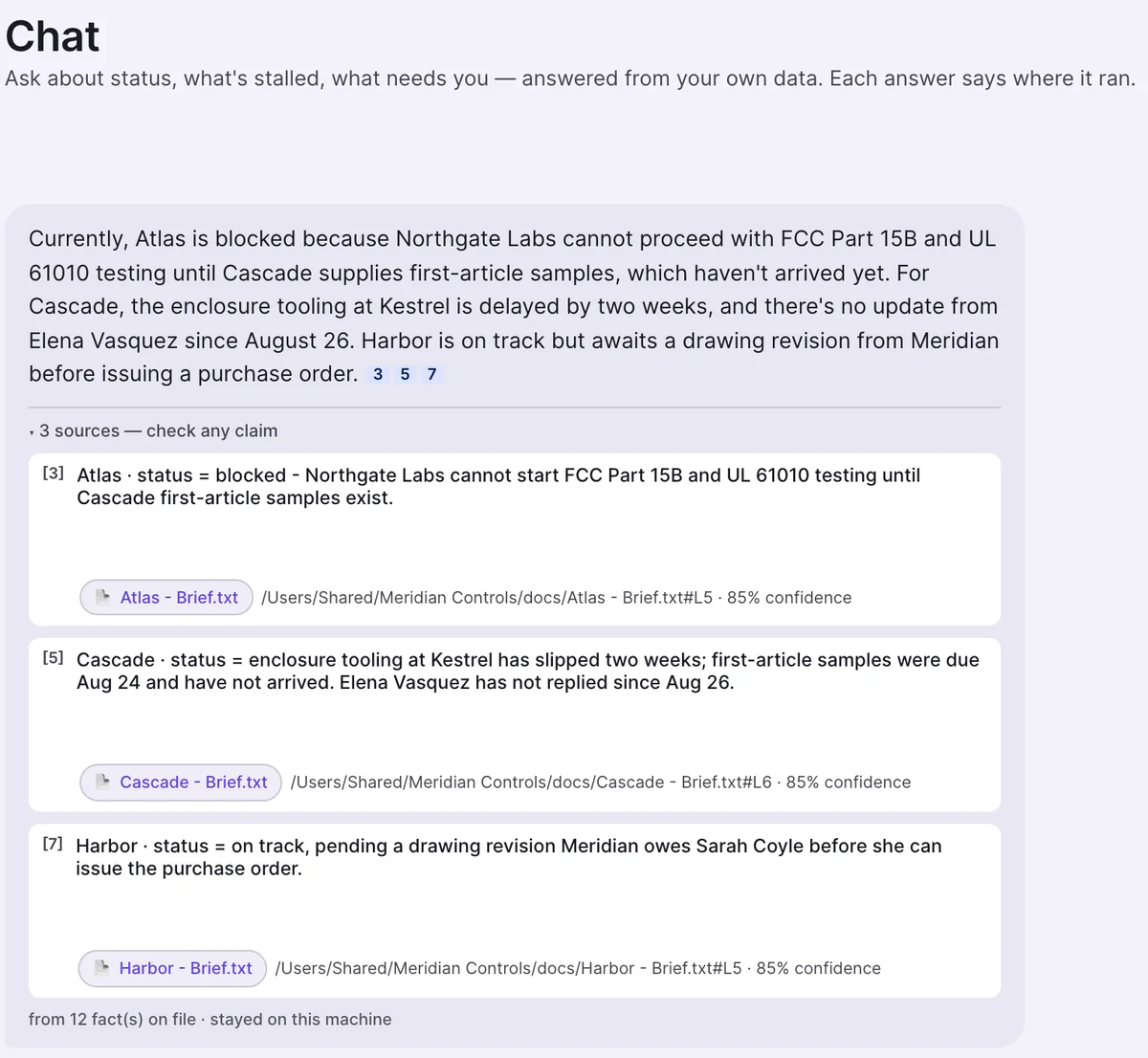
Asked: "Summarise where things stand" · demo company
Four steps
From download
to your first answer.
- 1
Download and open Helix
2 minMac or Windows (Mac gets each release first; Windows runs 1.6.17 today). The first open asks once because the app is not signed yet: on a Mac right-click Helix and choose Open; on Windows click More info, then Run anyway.
- 2
Start your 30 days
1 minEnter your name and email. No card and no account to create. The licence sits on this computer.
- 3
Choose what it may read
3 minEvery source starts switched off. Sign in to Microsoft 365, or pick folders and files. Helix sets up its local AI engine as part of setup.
- 4
Read Today
minutesStart with one project folder and Today starts filling in within minutes. A whole mailbox takes longer, and Helix keeps reading in the background.
Once it has read
Do these four things first.
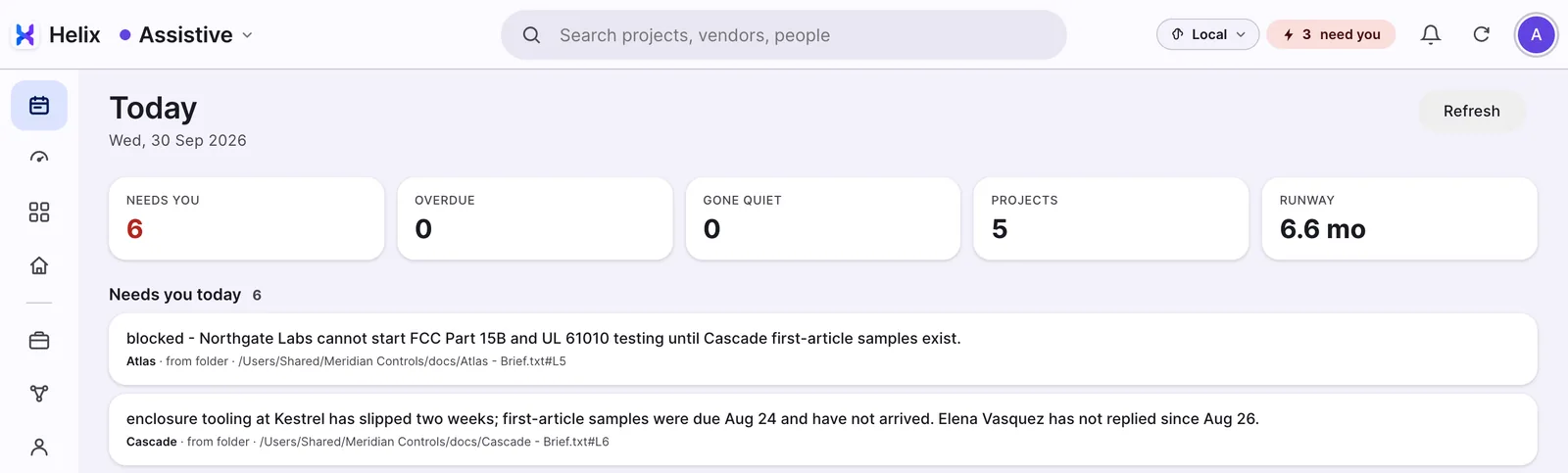
Click the first line on Today
It opens the email or file the line came from. That is how you check anything Helix tells you.
Ask a question
Try "Summarise where things stand", or "What is happening with" and the name of one of your projects. Each numbered source opens its document.
Open a project on the Board
If a project has stalled, Helix may already have drafted a follow-up. Improve it, then send it yourself when you are happy.
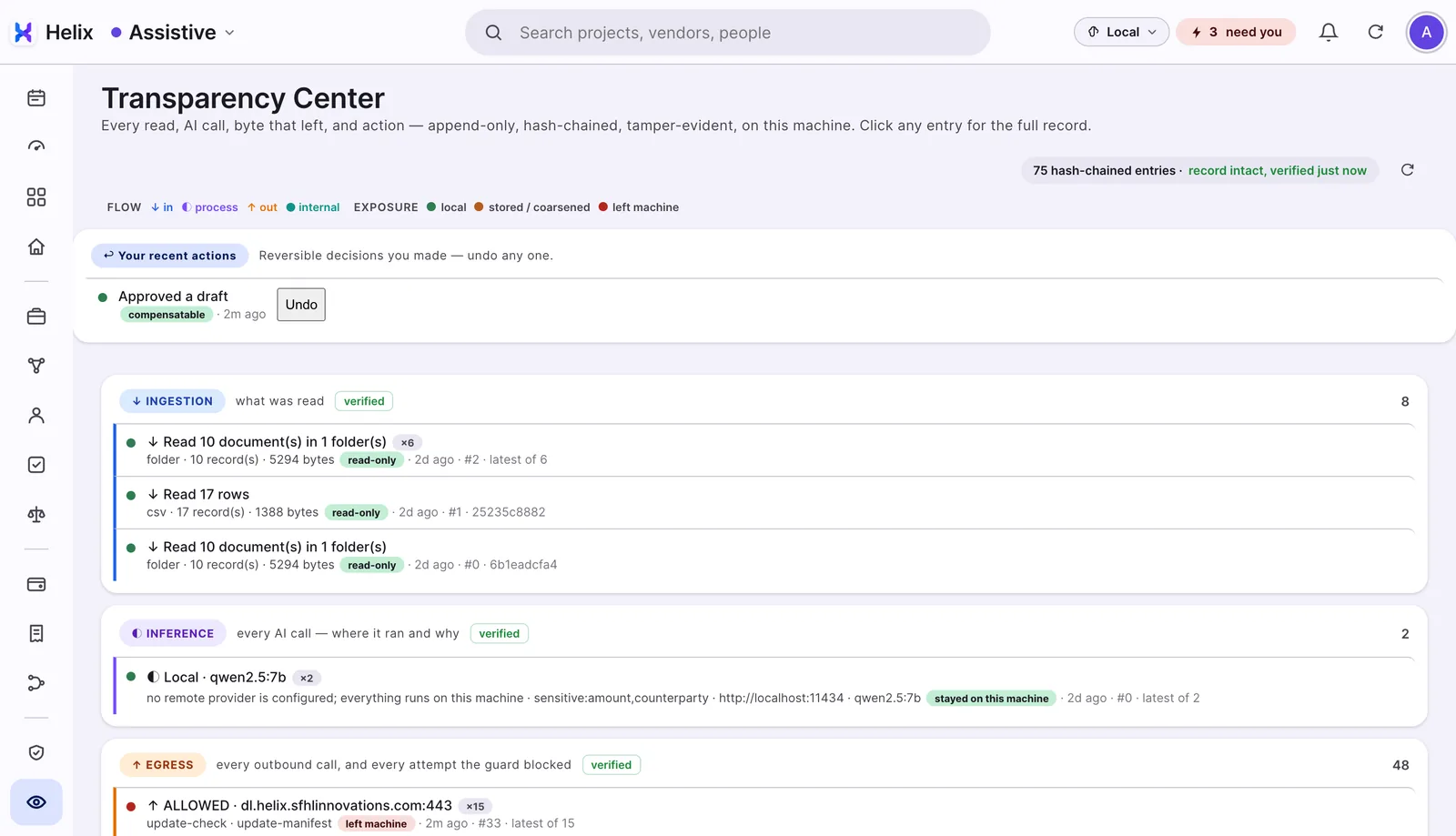
Open Transparency
See every AI call, where it ran, and every outbound call. Out of the box the only ones that leave are the update and licence checks.
Before you start
What works today, and what doesn't yet.
- Mac and Windows
- Sets up its own local AI, sized to your computer
- Microsoft 365: mail, files, calendar and Teams chat
- Folders and files you pick
- Today: what needs you, with the source of every line
- Ask questions and get answers with numbered sources
- Follow-up emails drafted for you to send
- A board of your projects
- Knowledge Map of projects, suppliers and people (Mac)
- Transparency view of every AI call and every outbound call
- Your own key for Claude, ChatGPT, Gemini or Grok, if you want one
- Google Workspace · built, being tested
- Signed installers · removes the first-open warning
- Windows on the latest release · Mac gets each release first
- Team use · today each person runs their own copy
- Independent security audit · planned
On Google? Google Workspace isn't available yet. Point Helix at a folder of your files for now; Google will come as an app update once testing is done.
Helix 1.7.2 for Mac, 30 September 2026 · Windows runs 1.6.17 · How Helix handles your data →
After you've tried it
Tell us three things, and get 10 more days.
What surprised you, good or bad?
What broke, or confused you?
Would you keep using it? Why, or why not?
Feedback sent from inside Helix adds 10 days to your trial, up to twice. You can also write to [email protected]. A blunt "this annoyed me" helps more than a polite "nice".